
Continuing my Procreate on-line tutorials and onto my next unit: Plants! Recently I signed up for a Procreate digital art workshop in Algarve, Portugal with Lisa Bardot which will be in less than a month. How exciting! And in preparation for the workshop in May, it was suggested I follow her 4-week tutorial, Kick Start with Procreate. And what useful tips did I pick up from that. Although she starts from the very basics, we quickly learn and even cover areas that even I myself had never discovered earlier!
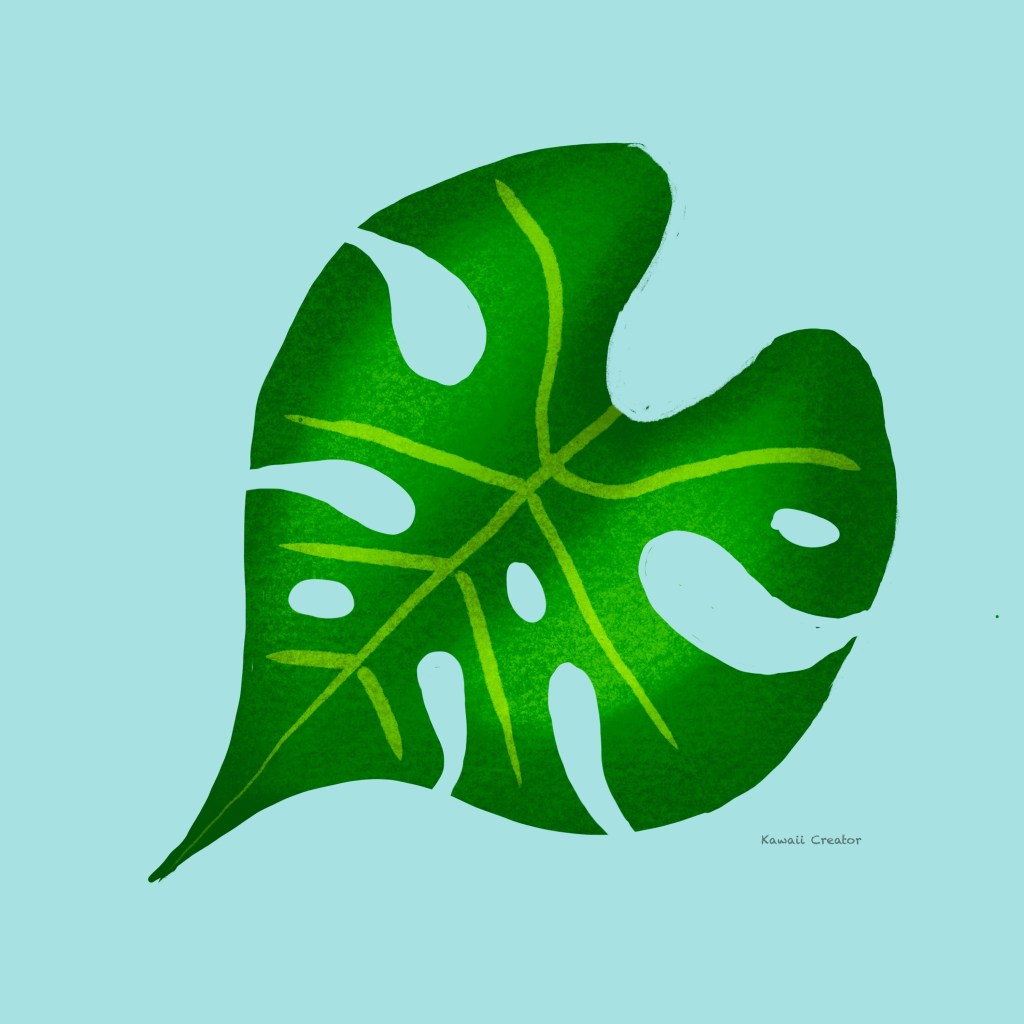
Monstera Leaf
In this lesson, we learn to draw a leaf starting with a circle rather than diving straight into trying to sketch one. That would be rather time consuming and frustrating! The curves and holes in the leaf are achieved by using an eraser to create shape. Who would have thought! Then we color it in and work on the shading. And another salient point in this exercise is mastering the Blending Modes: Multiply for shadows and Screen for highlights after of course Clipping Mask the leaf. What a handy technique to discover!
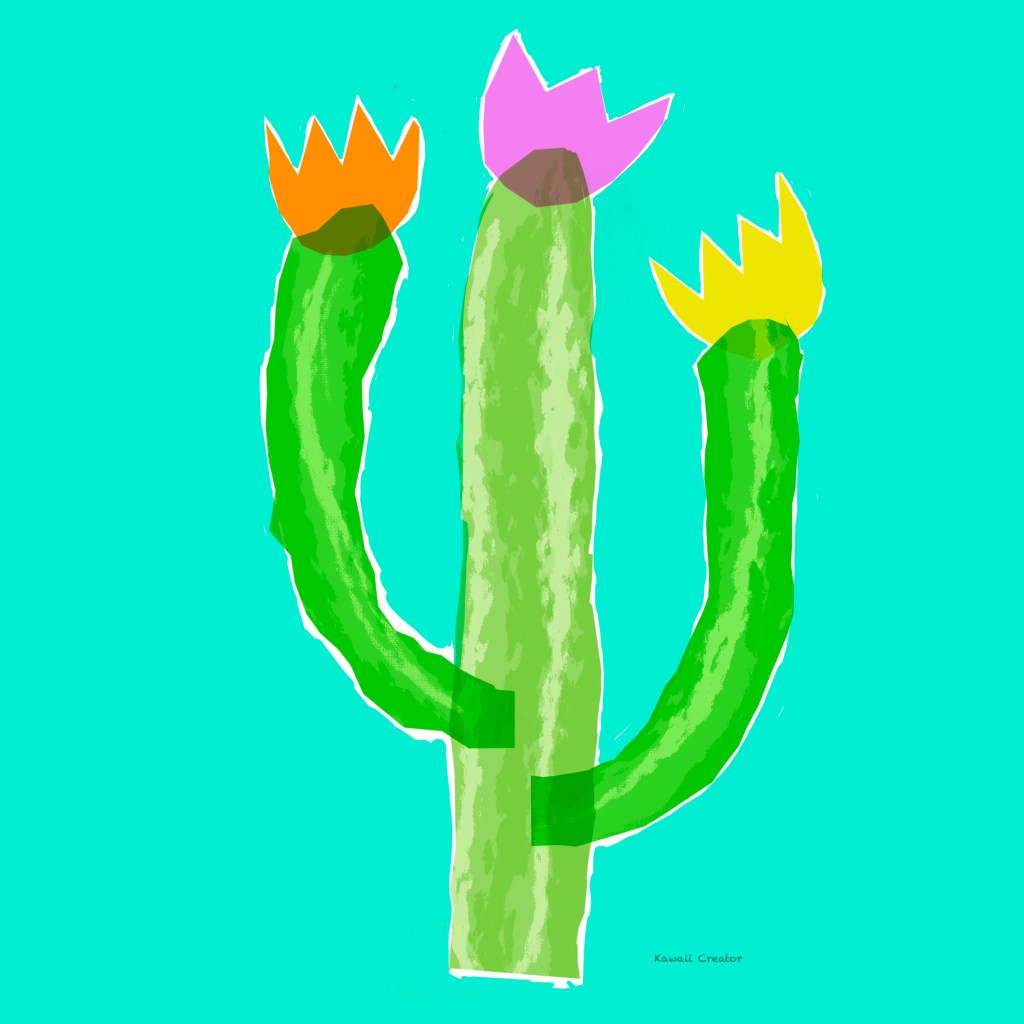
Kawaii Cactus
In this lesson, we learn to draw using the unconventional method of the Selection Tool. I never even used this tool! As the name suggests, it lets you select an area of your canvas you want to color in, move and transform. In this case, we created the cactus by “selecting” on a blank canvas its shape. Background color was achieved by Fill In the color but firstly switching to Invert. Now for the texture: Blending Mode Overlay relies on the shades of grey to create light and dark, as you see on the cactus. For the flowers, we used the same Selection method but we did not Invert them to Fill In the colors. The cactus and the flowers were then converted to the Multiply blending mode so the Overprint effect is now visible. How cool is that!
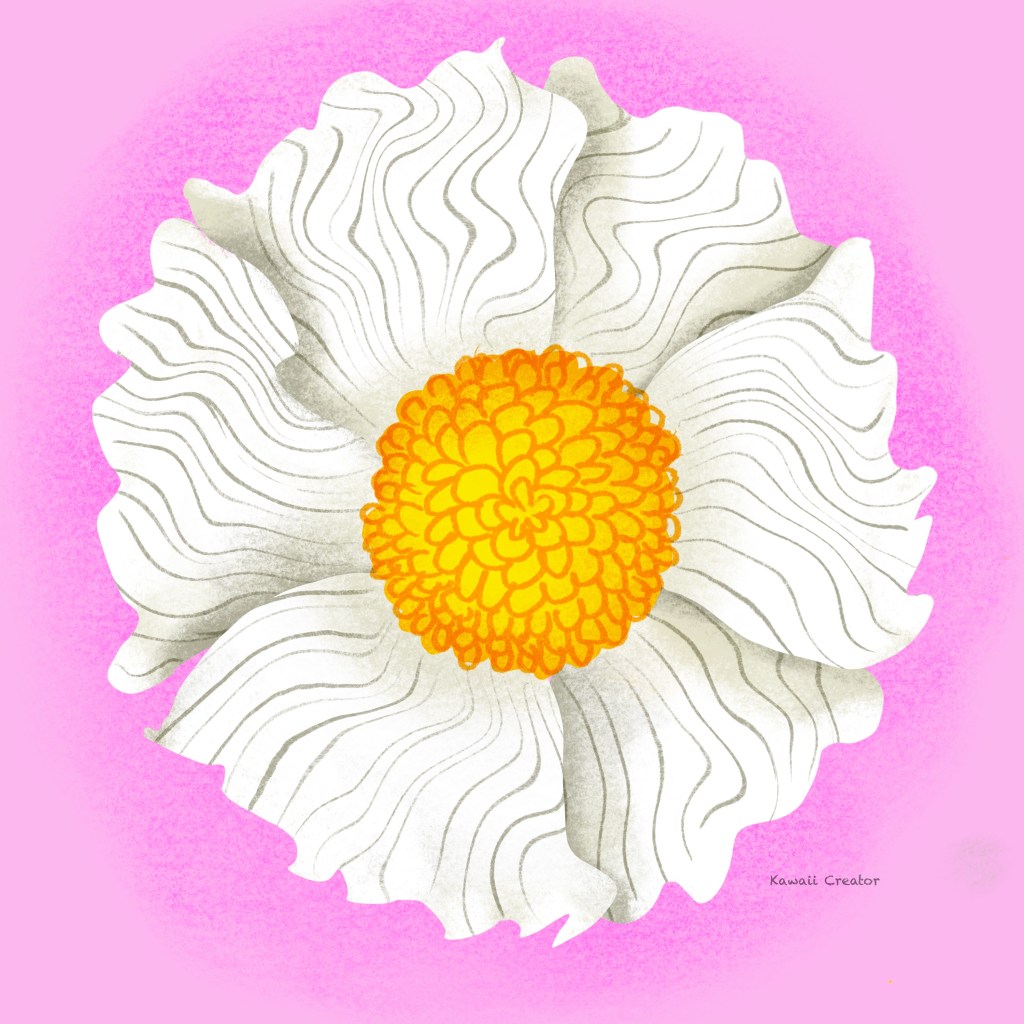
Poppy
This exercise introduces the Liquify tool. Another new concept! We are now back to sketching with the 6B pencil, starting out with a huge circle with a smaller circle in the middle before adding six triangles from the center which would eventually be the petals. Then the liquify tool enables us to create the wavy shapes on the edges of the petals and the undulating patterns inside them which started as straight lines. Shading was achieved by the Multiply Blending mode. Beautiful!
Acorn
My least favorite, but it had to be done and I’m glad I completed it! This time no sketching, but we were introduced to a Dry Brush technique to achieve that interestingly rough texture. Overlay Blending Mode was once again used for the 3D effect on the acorn and the curves of the leaf. What further enhanced the roundness on the acorn, though, were the Contour lines, another concept we also picked up during this tutorial. Now I am pleased with how it turned out!

Magic Mushrooms
This proved to be the most enjoyable of the five plants! Mushrooms are cute and it was more a free-style in terms of shapes and design. Previously we have been selecting colors via the Color Wheel but this time we were introduced to color swatches, a method which I am accustomed to. And now we paint the mushrooms in random shapes and sizes around the canvas. Eraser was used to help shape them better and create sharper lines when needed. Fun part about this one was adding interesting patterns using various texture brushes! Then the shading begins with yet another new Blending Mode, the Color Burn, which is comes out darker and more saturated than Multiply. The mushroom turned out beautifully but it I was still dissatisfied…. until I decided to draw smiley faces and make the background more peachy pink with a bit of shadows behind the mushrooms. Now, that’s more me!
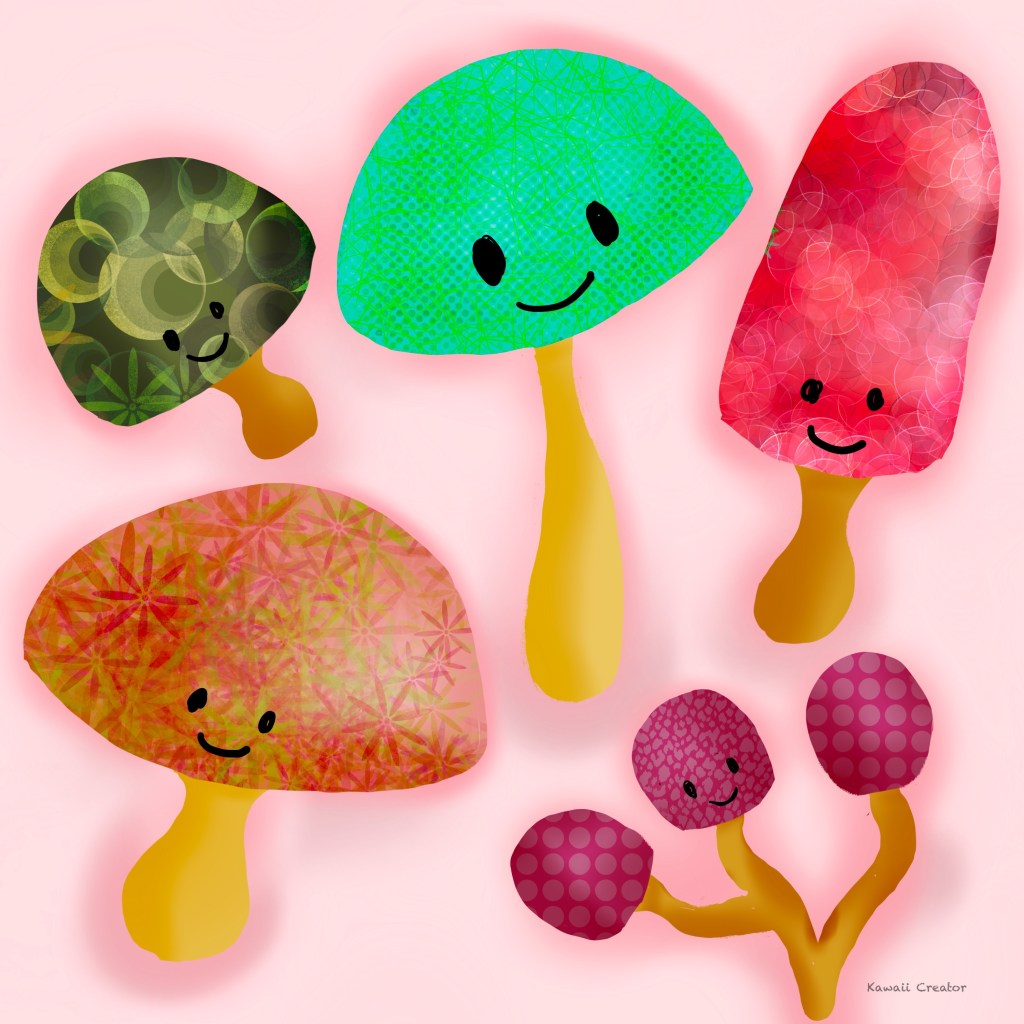
So mission Number Two completed! Once again learning even more and very happy with the progress. Stuff like Select tools, applying various Blending Modes for light/shade techniques and Liquifying certainly came handy. With more confidence gained, I am starting to develop the drawings more in my style whilst mastering all the techniques taught. Look forward to the next unit and applying what I had learned so far in my own digital artwork!


1 Comment